Registering Staff
Before you can set up your onsite booth staff with the ability to collect leads, you must register each person attending the event in ASCA’s Exhibitor Portal. ASCA staff will then assign them to your booth in the Cvent Lead Retrieval Exhibitor Portal (coming soon). Please allow 4–6 business days after registering your staff to see them assigned to your booth in the Cvent portal.
NOTE: You will not be able to assign your own staff to your booth in the Cvent Lead Retrieval Exhibitor Portal.
Assigning Lead Retrieval Licenses
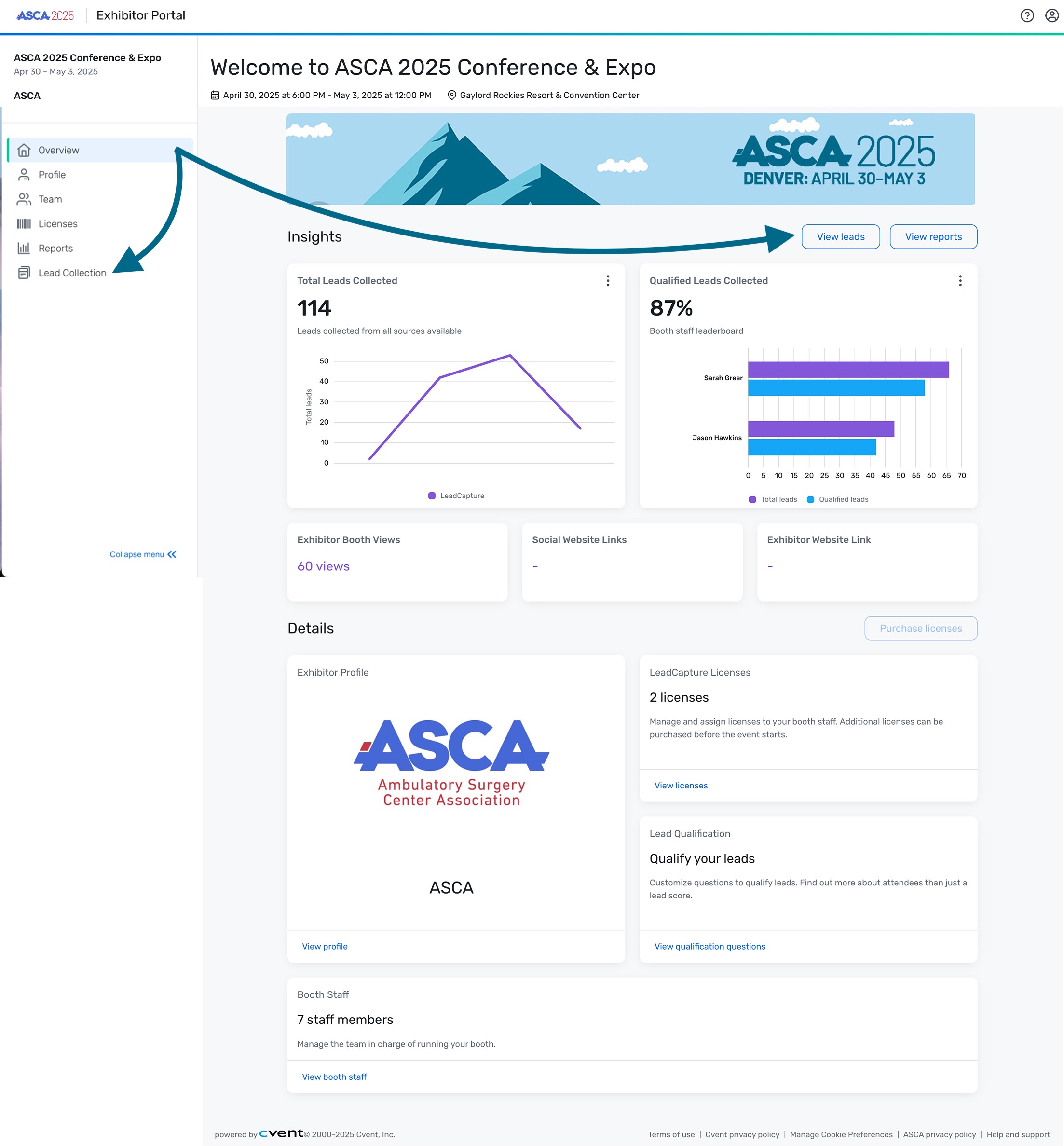
Your staff won’t have access to scan leads in the Cvent LeadCapture app until you assign them a license in the Cvent Lead Retrieval Exhibitor Portal. To do so, select Licenses from the left-hand navigation menu. All of your purchased licenses will be listed.
Select Options next to one of your unassigned licenses, then Assign License. Select the circle next to the person you want to assign the license to, then Assign.
Each staff member will receive an email with their license code to log in to the Cvent LeadCapture app once they’ve been assigned.
NOTE: App licenses require your booth staff to download the Cvent LeadCapture app on their own device in order to scan leads. Device rental licenses include the device with the Cvent LeadCapture app preinstalled, which can be picked up in the expo hall before the event.
Creating Qualifiers for Booth Staff to Record While Collecting Leads
The Cvent Lead Retrieval Exhibitor Portal allows you to create custom questions for your booth staff to better qualify leads as they are captured in the Cvent LeadCapture app.
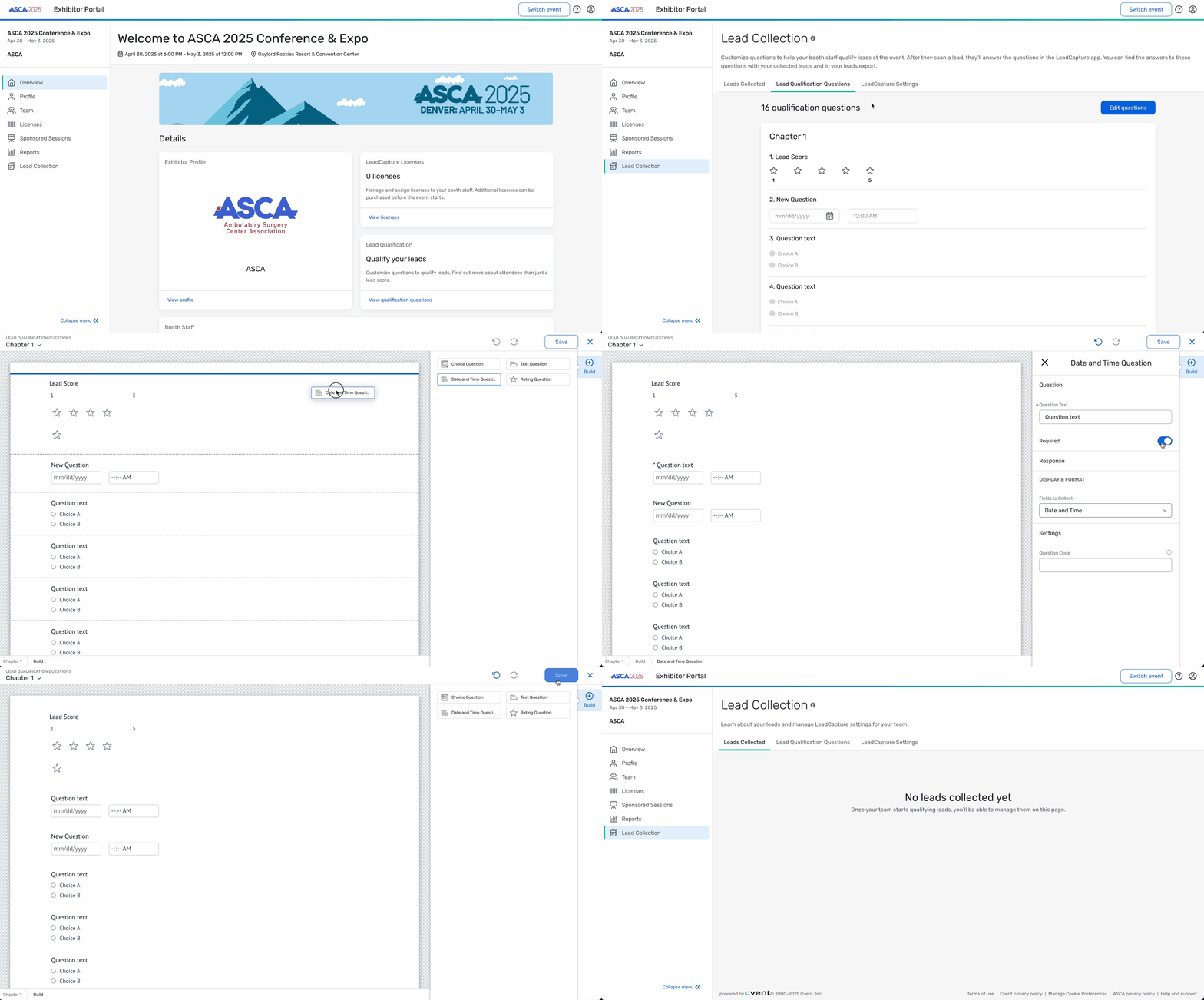
To create questions in the portal, select Lead Collection from the left-hand navigation. The Leads Collected tab opens by default. Select the neighboring tab, Lead Qualification Questions. Then build out your questions by selecting Edit questions.
Select + Build to the right of the canvas, then choose the question type.
- Choice Questions allow you to select from a list of predetermined options. Display choices include a single answer list or multiple answer list.
- Text Questions allow you to type out any general text. Display choices include a text field or comment box.
- Date and Time Questions allow you to enter in a specific date and time. Display choices include both date and time or date only.
- Rating Questions allow you to choose a rating between 1 and 5 on customized text.
Select and drag the desired question type onto the canvas. Additional settings will appear to the right.
In the Question section, enter your question text and determine the label placement. Toggle “Required” to blue if you want to ensure the question is answered.
In the Response section, determine how the choices will display, the choice options and how the choices will behave. These will change depending on the question type you’ve added.
Under Settings, enter a question code, if necessary.
Select Save.
Sub-questions can be added to any Choice Question so that if a certain answer is selected, another question appears.
Hover over the question that you want to add a sub-question to, then hover over the ellipsis (...) in the top-left corner of the window and select Add sub-question.

Select the question type for the sub-question; additional options will appear to the right of the canvas.
In the Question section, enter your question text and determine the label placement. Toggle “Required” to blue if you want to ensure the question is answered.
In the Response section, determine how the choices will display, the choice options and how the choices will behave, if applicable. These will change depending on the question type you’ve added.
In the Sub-Question Logic section, select which answer(s) should make this sub-question appear.

Under Settings, enter a question code, if necessary, and select Save.
Capturing Leads Onsite
If your booth staff are using their own devices, they must download the Cvent LeadCapture app from the Apple App Store or Google Play Store. Rented devices will already have the app installed.
Once downloaded, they need to open the app, enter their access code and tap Next, then Yes, Activate Device.
NOTE: Each registered booth staff member will receive an email with their access code to log in to the Cvent LeadCapture app after you assign a license to them in the Cvent Lead Retrieval Exhibitor Portal.
To scan a lead, tap Add Lead and scan the attendee’s QR code on the front of their event badge.

If necessary, tap Qualify Lead. Enter responses to any qualifying questions, then tap Save.

Deleting Leads
If you no longer want a lead to appear in reports, you can delete the lead in the Cvent Lead Retrieval Exhibitor Portal. From the left-hand navigation, select Lead Collection. Select the down arrow to the right of the lead you want to delete, then select Delete. On the next screen, select Delete lead to confirm the deletion.

Exporting Leads
NOTE: Only exhibitor admins have access to export leads. If you were part of the booth staff onsite, contact your exhibitor admin and provide them with these steps to export your leads.
To export leads collected onsite, log in to the Cvent Lead Retrieval Exhibitor Portal (coming soon). If you don’t remember your password, select Forgot? to create a new one.
The number of leads collected will appear in the Total Leads Collected section. Select Lead Collection in the left menu to display all leads collected. Select the blue View leads report button to export leads. On the next screen, choose which fields to export. Then choose the format you prefer, name the file and select the green Export report button.
Alternatively, you can go directly to the report and export by selecting the outlined View leads button.
Your leads will automatically download. Locate the file on your computer or network. Right-click the file name, hover over Open with and select Excel. You must have the most up-to-date version of Microsoft Excel to view the content in the column.